
History: search, filter, edit
Change the month, group spending by category, find a transaction by note or amount and fix it. Who can edit whose entries.
Available to: Owner, Administrator, User, and Child
History is the list of every transaction in the project, month by month. Here you find an old expense, check where the money went and fix mistakes.
On a computer, the search box is in the top bar, and above the list you also get category and account filters and multi-row selection.
Step by step
- Tap History on the bottom bar.
- Change the month with the ‹ › arrows or, on a phone, by swiping the middle or right side of the list. Swipe right for the previous month, left for the next. The date button opens the Filter transactions window with the Month and Date range tabs. Month swiping is unavailable in a date range or when searching the whole history.
- Turn on the grouping switch next to the folder icon to see totals per category instead of a list of days.
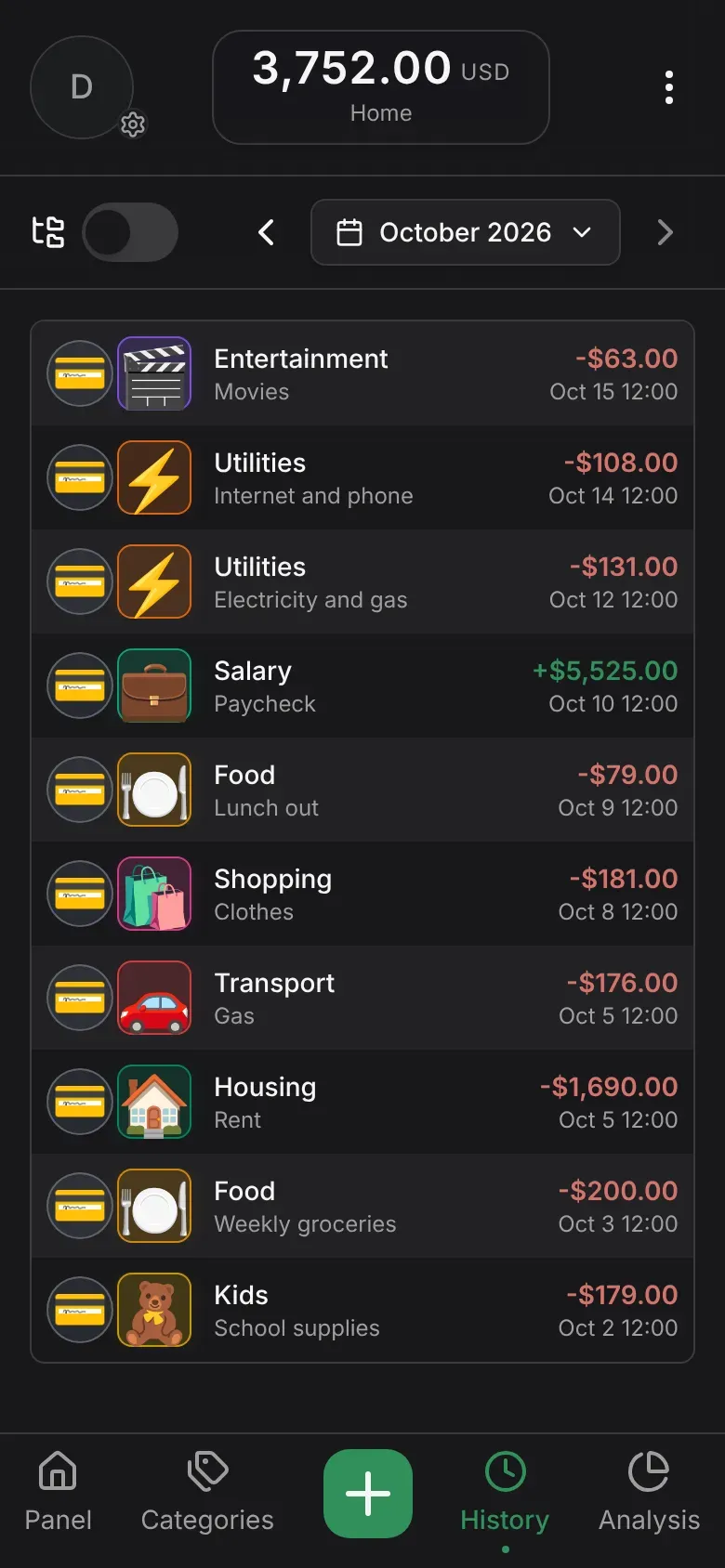
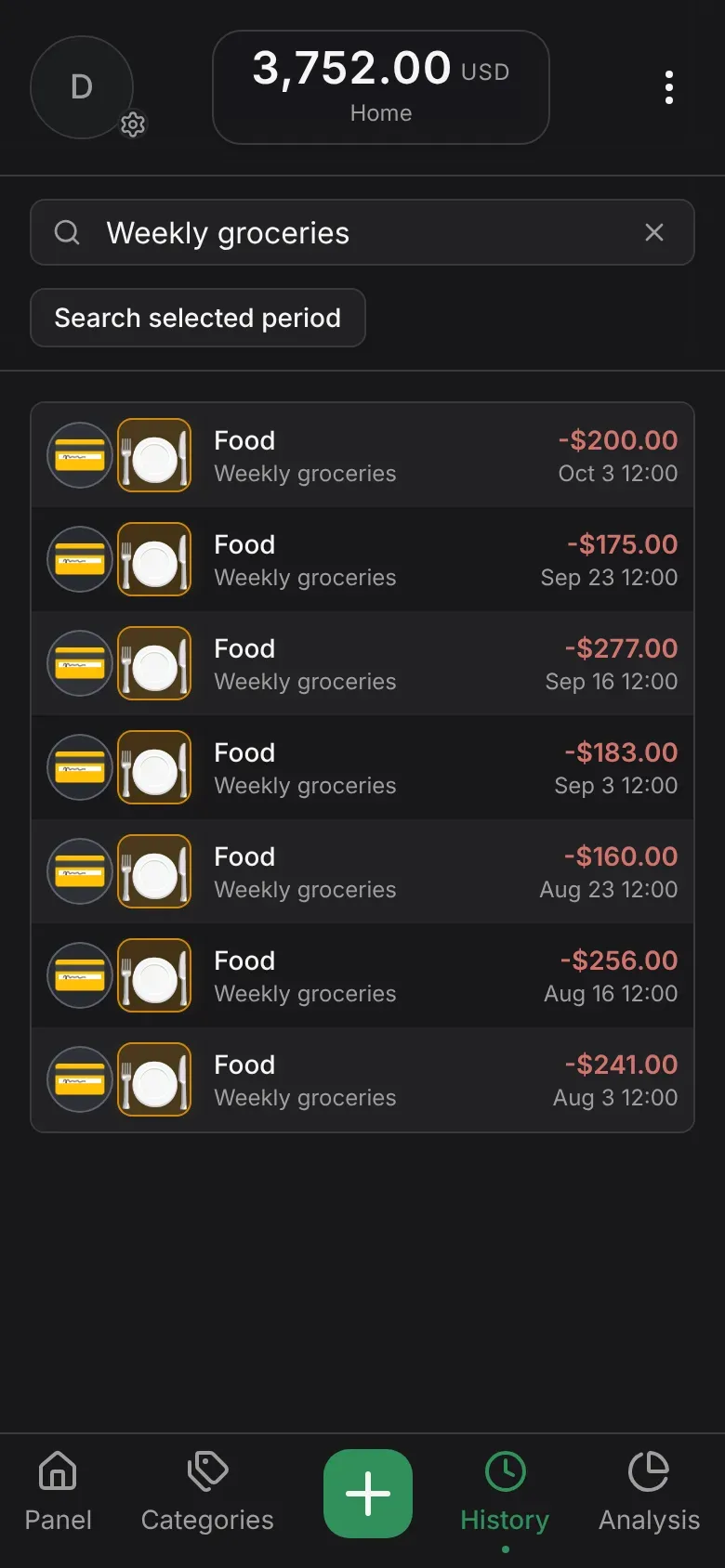
- To search, tap ⋮ and choose Search — or press and hold the History tab. Type part of a note, a category name or an amount, e.g. “64.20”.
- Search covers your whole history. Tap Search selected period to search only the selected month or range.
- Tap a transaction to fix it. The Edit transaction screen opens — change the amount, category, date, account or note and tap Save.
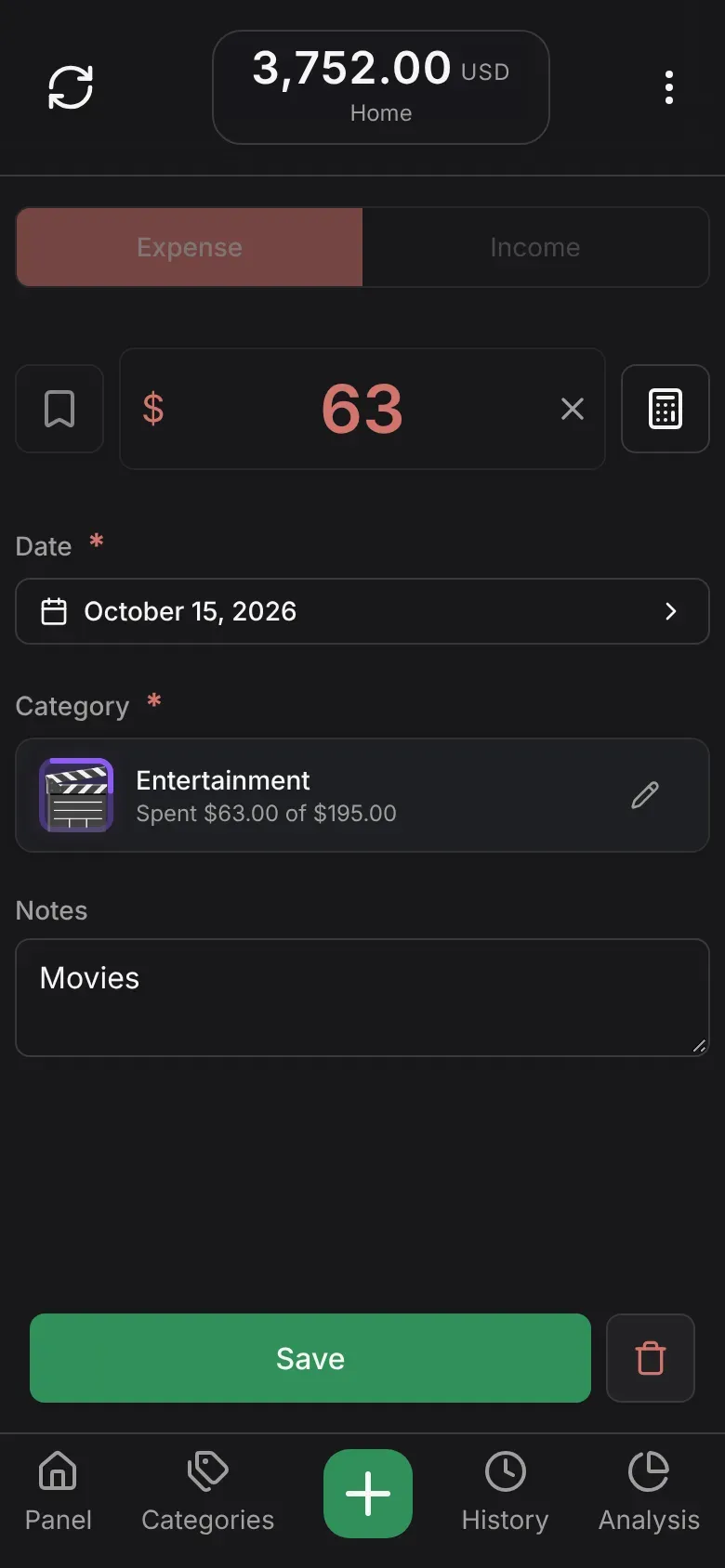
- To delete a transaction, tap the bin icon next to the save button on the same screen and confirm.
On a computer
- Above the list, choose All categories or All accounts to narrow it down. Active filters show as chips with a cross.
- Select rows with the checkboxes on the left (Shift selects a range). The bar above the list lets you Change category or delete the selected rows at once.
- A clicked transaction opens in a pane next to the list, without leaving history.
Good to know
- The Owner and Administrators can fix any transaction. A User sees all of them but fixes only their own — on someone else’s you see the message No permission. Someone with the Child role sees only their own entries.
- While editing you can’t change the type (expense/income), and the date can’t be in the future.
- Transactions on an archived account are read-only (Account archived). To change them, restore the account in Settings.
- In a project with several people, the ⋮ menu shows Share transaction while you edit a transaction. It sends a link that opens this entry for the other person — if they’re allowed to see it.
- The Owner and Administrators can choose Edit view in the ⋮ menu to show next to each row who added it and from which account. The change applies to everyone in the project.
- On a phone, start at the icons on the left side of a row: swipe right to show more columns (who added it, from which account) and left to hide them. This setting applies only to your device. When searching the whole history or viewing a date range, you can swipe across the whole list to change columns.
- Transfers between accounts have their own rows and don’t open for editing.
Related
Frequently asked questions
Why can't I open my spouse's transaction?
With the User role you edit only your own entries. Someone else's transaction can be changed by its author or by the project's Owner or an Administrator.
Does search look only in the current month?
No. By default it searches your whole history. To narrow the results, turn on Search selected period.