
Transfer between accounts
Move money from one account to another, e.g. from your personal account to Savings. A transfer changes balances but isn't an expense.
Available to: Owner and Administrator
A transfer moves money between two accounts in the same project: from a personal account to a joint one, from an account to cash, or to 🐷 Savings. One balance goes down, the other goes up, and your total money stays the same.
On a computer, open a transfer with the T key or from the command palette (Ctrl+K, ⌘K on a Mac) with the Transfer between accounts command.
Step by step
- Tap ⋮ on the top bar and choose Transfer funds. The Transfer between accounts window opens.
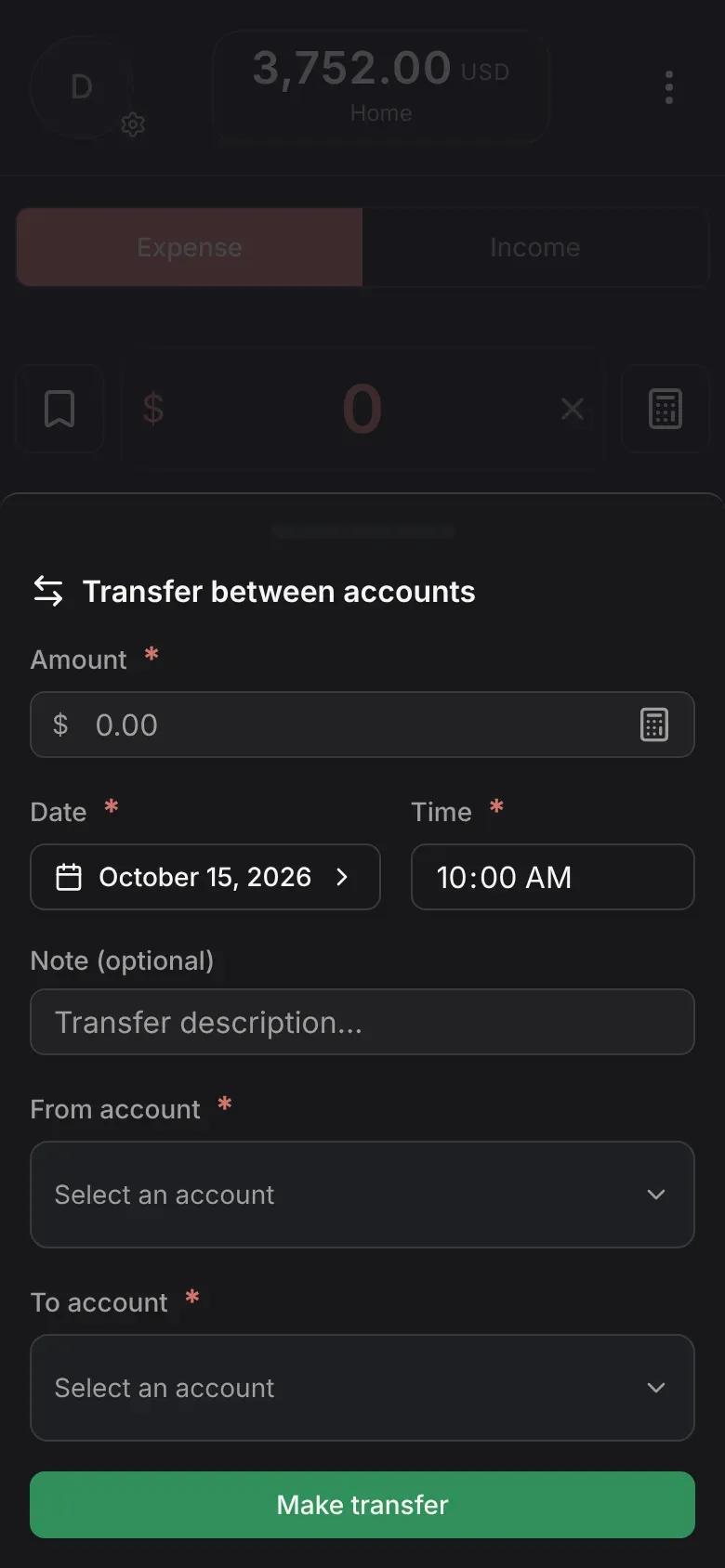
- Enter the Amount, e.g. $300.
- Date and Time are set to now. Change them if the money moved earlier — you can’t pick a future date.
- In Note (optional) you can add what the transfer is for, e.g. “saving after payday”.
- In From account, choose the account you’re taking money from.
- In To account, choose the target account. The list doesn’t show the account selected above.
- Tap Make transfer. Both balances change right away.
Good to know
- A transfer is neither an expense nor income. Both balances change, but the month’s total expenses and income stay the same.
- In history, a transfer has its own Transfer row with the route “account → account”. It has no category, so it disappears when you filter history by category or search.
- All accounts in a project use the project currency. A transfer moves the same amount — the app doesn’t convert anything.
- The 🐷 Savings and 🛟 Emergency fund accounts receive money only by transfer. By default they don’t count towards the balance on the top bar, so a transfer to them lowers the balance you see.
- A deposit to a savings goal is also a transfer — to the Savings account, assigned to the goal.
- Only the project’s Owner or an Administrator can make, edit or delete a transfer. Someone with the User or Child role sees the message You don’t have permission for this operation.
- Fix a mistake in history: tap the transfer row and the Edit transfer window opens. Change the fields and tap Save changes, or delete the transfer with the bin icon next to it — both balances return to where they were before. A transfer involving an archived account can’t be changed.
- For a transfer assigned to a goal, you can only fix the date, time and note. Change or withdraw its amount and accounts in Goals; such a transfer can’t be deleted. The app also won’t save a change that would leave the Savings balance below the amount assigned to goals.
Related
Frequently asked questions
Does a transfer to Savings increase my spending?
No. A transfer only moves money between your own accounts. Total spending stays the same.
How do I undo a transfer made by mistake?
Tap the transfer in history. In the Edit transfer window, fix the amount, date or accounts, or delete it with the bin icon next to Save changes. Both balances return to where they were before the transfer.