
Amount calculator — do the maths before you save
Add, subtract, multiply or divide several amounts and enter the result with one button. You can even pull an amount from your history.
Available to: Owner, Administrator, User, and Child
The amount calculator works out a result from several numbers and puts it straight into the form. It helps when you split a bill with friends, add a tip or work out the price of several of the same item. You don’t need a separate calculator app or a scrap of paper.
Step by step
- Open the add screen by tapping + on the bottom bar.
- Tap the calculator icon to the right of the amount field. The Amount calculator window opens; if you had already typed an amount, it becomes the first number.
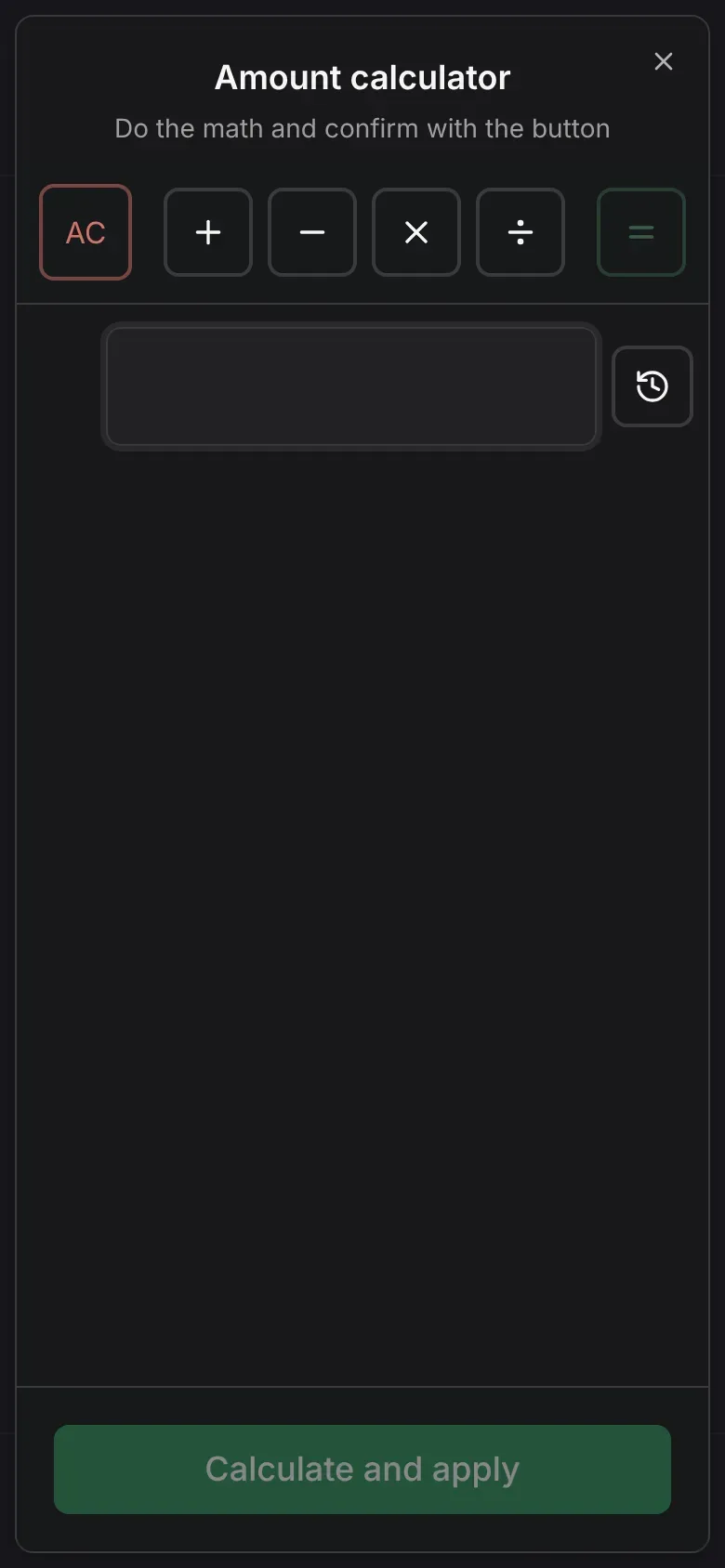
- Enter the first number, e.g. 96.
- Pick an operation at the top of the window: add +, subtract −, multiply × or divide ÷. A new field appears below the number.
- Enter the next number, e.g. 4. Below, you see the whole calculation and its result: 96 ÷ 4 = 24.
- Instead of typing a number, you can tap the clock icon next to the field (Pick from history) and choose an earlier transaction. Its amount goes into the calculation.
- Tap Calculate and apply or the = button at the top. The result appears in the amount field.
- Fill in the category and tap Save.
Good to know
- You can correct the calculation: tap the sign between two numbers and pick another. The AC button clears everything.
- The Select a transaction list shows up to 50 recent transactions of the same type as the form.
- When you split a bill, the main calculator is hidden. Each part of the split has its own calculator next to the amount.
- On a computer, the + or = key opens the calculator when the cursor isn’t in a field.
- The calculator also works offline — it calculates on the device.
- You can still change the calculator’s result by hand in the amount field. The cross in the amount field resets the amount if you want to start again.
Example: shared pizza
A $96 bill for four: enter 96, pick ÷, enter 4 and tap Calculate and apply. You save only your own $24.
Related
Frequently asked questions
Does the calculator change the category or note?
No. It only puts the result into the amount field. The category, note and date stay as they were.
Which transactions can I pick from history?
Your most recent transactions of the same type — expenses for an expense, income for an income.