
Templates — a frequent expense with one tap
Save coffee, fuel or your regular grocery run as a template and add it with one choice. Step by step, with what each role sees.
Available to: Owner, Administrator, User, and Child
A template is a saved expense or income that you add with one choice instead of typing it again. It helps with things you buy every week: coffee, fuel, groceries from the same shop.
On a computer, Templates sits in the sidebar, and you can also pick a template from the command palette (Ctrl+K, ⌘K on a Mac) with the Choose a template command.
Step by step
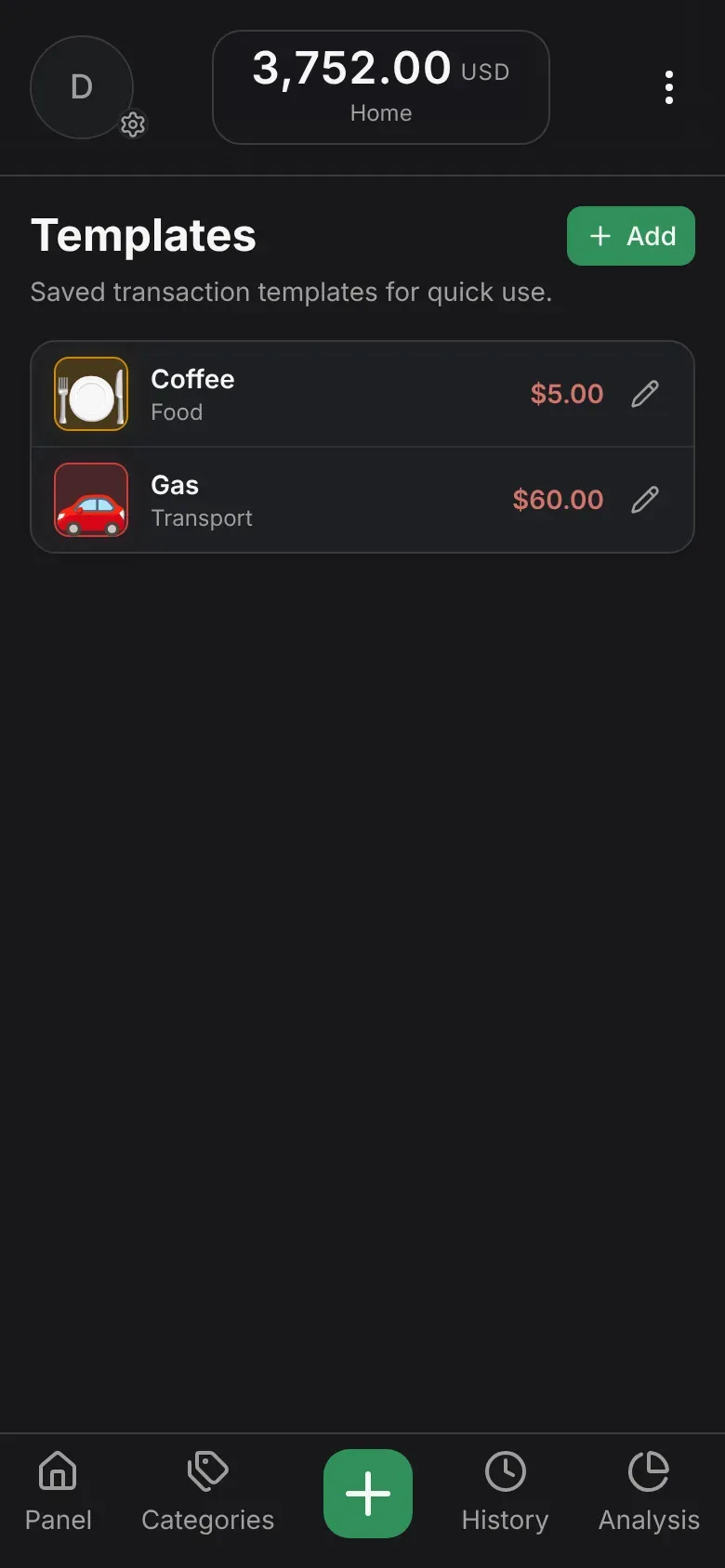
- Tap ⋮ on the top bar and choose Templates.
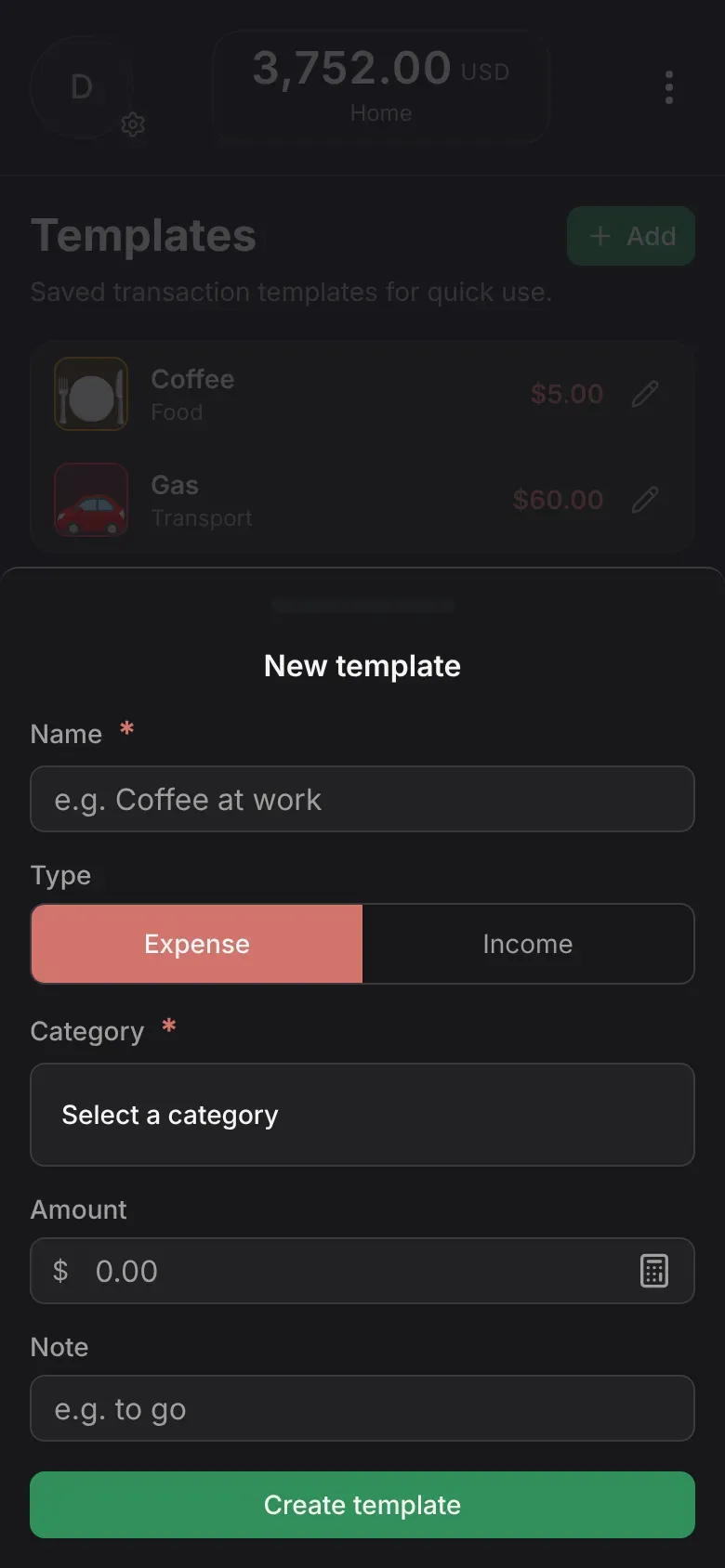
- Tap Add in the top right corner.
- Enter a Name, e.g. “Coffee at work”, and under Type choose Expense or Income.
- Choose a Category. The list shows only categories that match the type.
- Enter the Amount, e.g. $5. You can leave it empty if it changes each time — you’ll enter it when adding.
- Optionally add a Note, e.g. “to go”, and tap Create template.
- When you want to use it, tap the template in the list. The add screen opens with the type, category, amount and note filled in — check the date and tap Save.
- Fastest: press and hold + on the bottom bar on any screen and pick a template from the list.
Good to know
- On the add screen, the bookmark icon next to the amount opens the Templates list. It shows only templates that match the selected type: expenses or income.
- Templates are private. Everyone in the project — including someone with the Child role — sees and uses only their own.
- A template adds nothing by itself. Set up payments that come back regularly as recurring transactions.
- Templates are turned off while you edit an existing transaction, so they can’t overwrite its data.
- Changing a template doesn’t change transactions added from it earlier.
- To change a template, tap the pencil next to its row. Delete it with the bin icon next to the save button in the edit form.
How many templates to keep
Start with the three expenses you add most often. Add more when you catch yourself typing the same thing twice in a week.
Related
Frequently asked questions
Can my spouse see my templates?
No. Templates are private — everyone in the project sees only the ones they created.
Does a template add an expense every month by itself?
No. A template only fills in the form when you choose it. Set up regular payments as recurring transactions.