
Split one receipt across several categories
One shop, several categories: groceries, household, pharmacy. Split the receipt total into parts and save them at once as separate transactions.
Available to: Owner, Administrator, User, and Child
Split bill turns one receipt into several transactions in different categories. That way the analysis shows how much really went on groceries and how much on household supplies, even if you bought everything in one shop.
On a computer, turn on splitting from the command palette (Ctrl+K, ⌘K on a Mac) with the Split bill command.
Step by step
- Tap ⋮ on the top bar and choose Split bill. The add screen opens in split mode.
- Choose Expense or Income and enter the Amount of the whole receipt, e.g. $186.50.
- Tap Add split.
- In the part window, enter its Amount, e.g. $128.30, choose a Category and optionally add Notes. Tap Add.
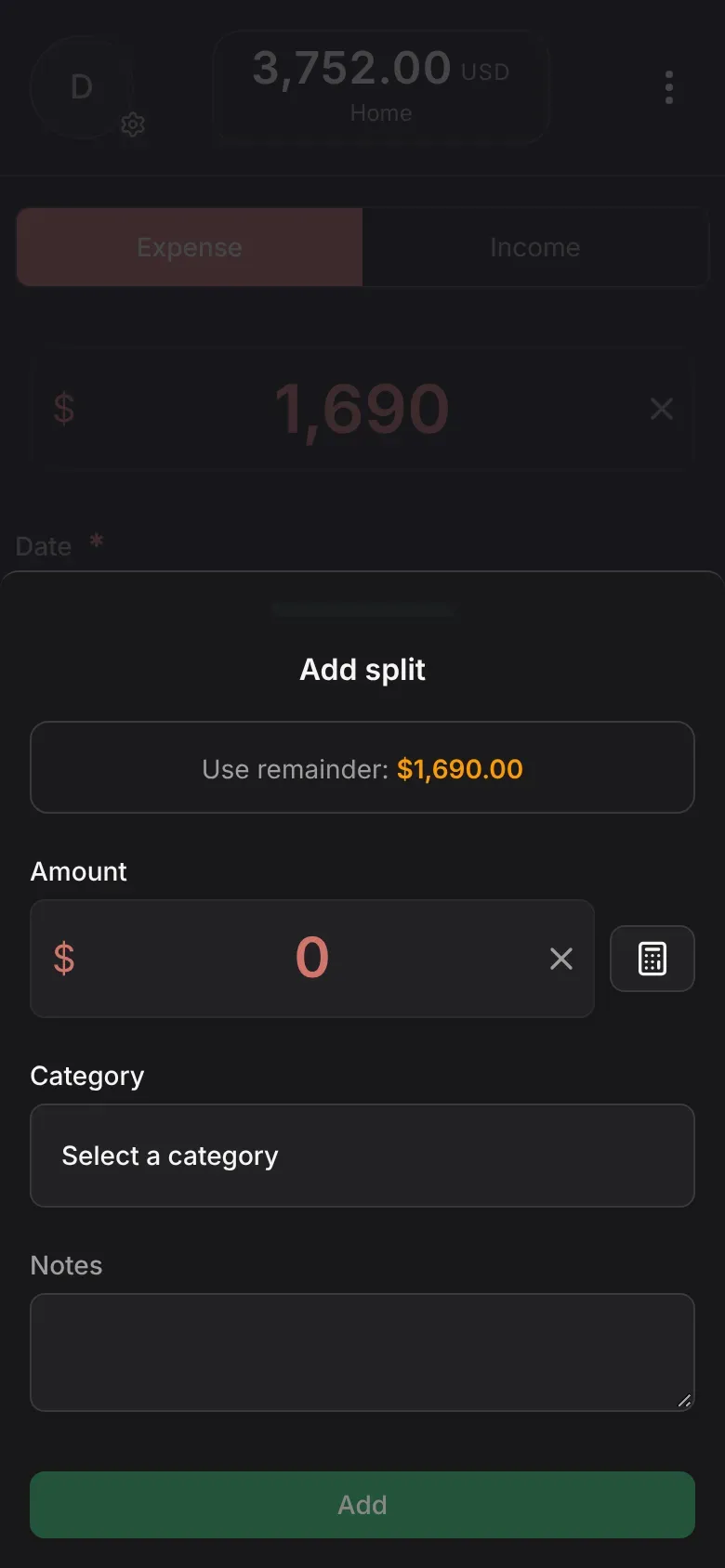
- Repeat until the whole amount is assigned. The Remaining to allocate: row shows what’s left.
- For the last part, tap the amount next to Use remainder: — the whole remainder is filled in.
- Check the date and account, then tap the save button. It shows the number of parts, e.g. Save (3 transactions).
Good to know
- The colour of the remaining amount shows the state: amber — something is left, green — fully assigned, red — over the total. You can save only at zero.
- Tap a part’s row to edit it. The bin icon next to the save button in that window removes the part.
- In history, each part is a separate transaction with its own category and note.
- You can’t turn on splitting while editing an existing transaction. The split date can’t be in the future.
- Choosing Split bill in the ⋮ menu again turns split mode off.
- You choose the account once for the whole bill — every part goes to the same account. A single part can’t be more than what’s left to allocate.
Receipt from a photo
In split mode a ChatGPT card appears below the form. Once Finanse.app is connected to ChatGPT, a photo of the receipt is enough — ChatGPT splits it into your categories and you approve the preview.
Related
Frequently asked questions
Is a split receipt one transaction?
No. Each part is saved as a separate transaction in its own category, with the same date and the same account.
Can I schedule a split bill for the future?
No. Splitting works only with today's date or an earlier one.