
Recurring transactions: salary, rent, subscriptions
Set up your salary, rent or a subscription once — it adds itself or reminds you. How to choose the mode and clear overdue payments.
Available to: Owner, Administrator, User, and Child
A recurring transaction is a rule that adds the same entry every week, month or year: salary, rent, a loan payment, a subscription. You set it up once and don’t have to remember it every month.
Step by step
- Tap ⋮ on the top bar and choose Recurring.
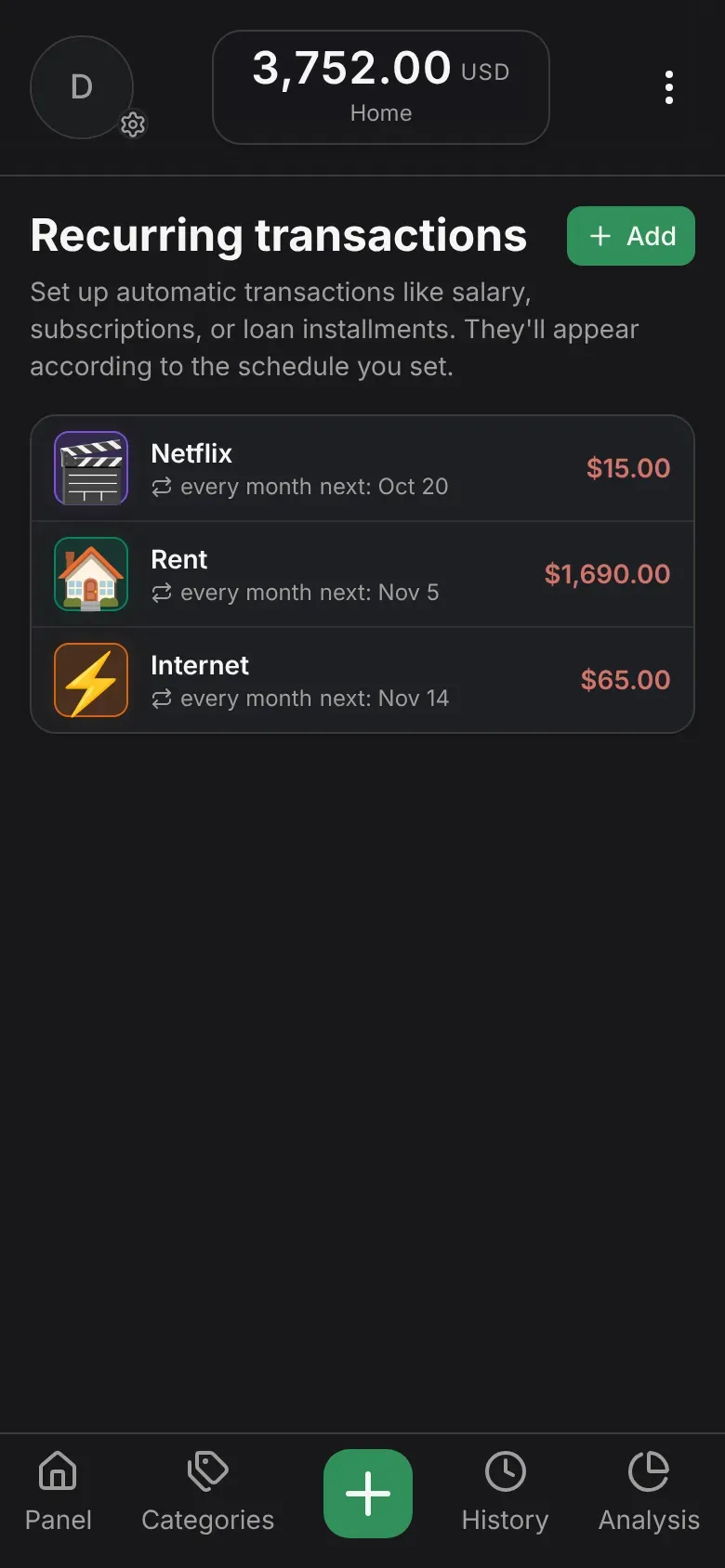
- Tap Add in the top right corner.
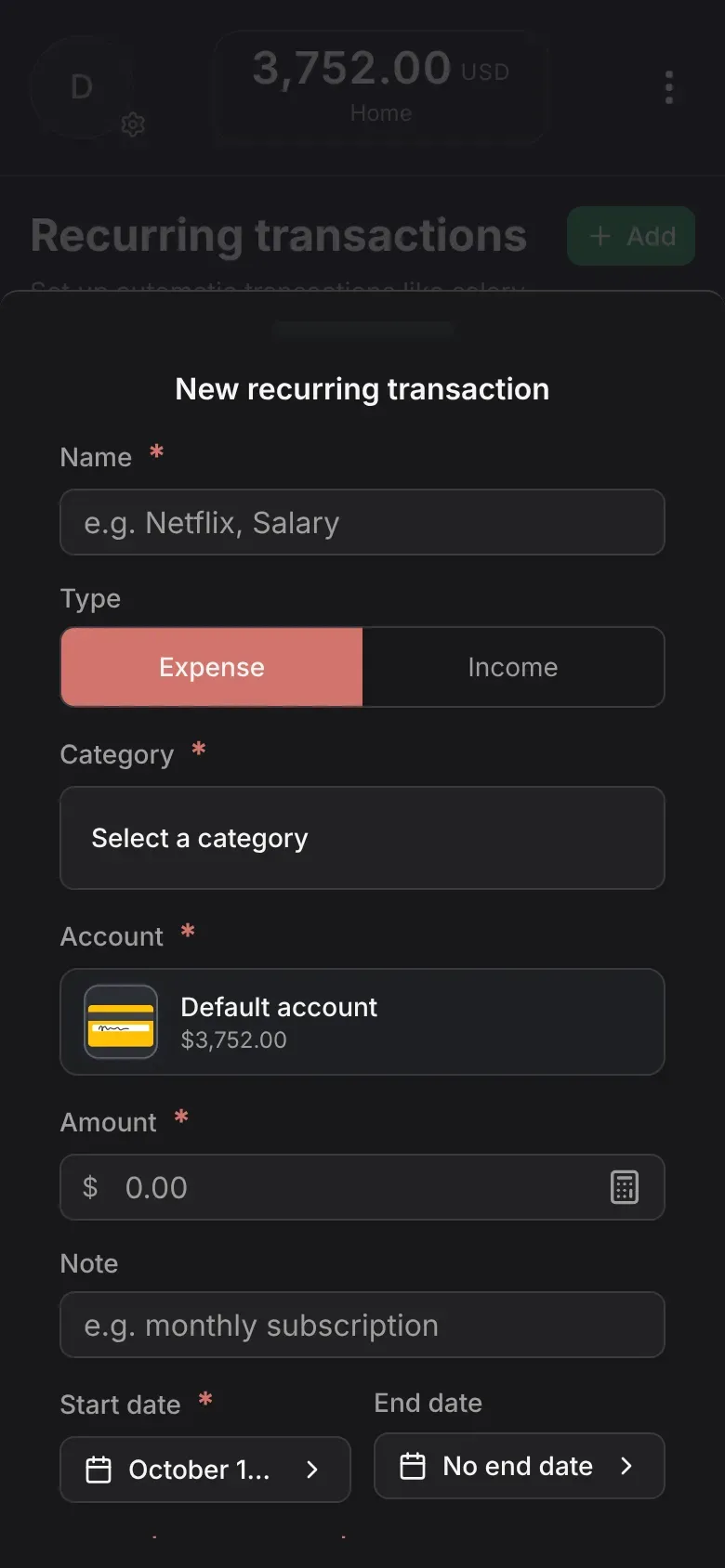
- Enter a Name, e.g. “Rent”, under Type choose Expense or Income, then pick a Category and an Account.
- Enter the Amount, e.g. $1,800.
- Set the Start date — the day of the first payment.
- Set how often it repeats: type a number in Every and in Unit choose e.g. month / months. “Every 1 month” means once a month.
- If the payment has an end, such as the last loan instalment, set an End date. Without one, the rule runs with No end date.
- Decide on the Add automatically switch (see below) and tap Create recurring transaction.
Automatic or with a reminder
This is the key decision for every rule.
- Add automatically on: the transaction appears in history by itself on the due day. Choose it for money that leaves your account automatically — salary, loan payments, subscriptions.
- Off: on the due day you get a reminder and confirm the payment yourself. Choose it for payments you have to remember — rent you pay by hand, the electricity bill.
The reminder arrives as a push notification if you’ve turned them on. You can confirm the payment right away with Confirm in the notification or put it off with Later.
Overdue payments
An unconfirmed payment becomes overdue. You see it at the top of the Recurring list, in the Overdue section, and on the Panel. A red dot appears on ⋮.
- Tap Paid (for income, Received) to record one overdue payment in history.
- When several repeats are overdue, the button marked all records them at once, each with its own date.
Good to know
- A start date today or in the past with Add automatically on immediately adds every entry that’s already due.
- Each row in the list shows the next payment date. Tap it to change the rule; when editing, the field is called Next payment.
- Deleting a rule (bin icon in the edit form) doesn’t remove entries added earlier.
- The Owner and Administrators can change any rule in the project. A User sees all rules but changes only their own. Someone with the Child role sees only their own rules.
Related
Frequently asked questions
What should I choose for a loan payment taken from my account automatically?
Turn on Add automatically. The payment appears in history by itself on the due day.
Does deleting a recurring transaction remove entries already added?
No. Earlier entries stay in history. You only remove future repeats.
Will I get reminders from every project?
Yes. Reminders come from all your projects, and tapping a notification opens the right project.