
Add an expense or income in a few seconds
Amount, category, date and save — how to add an expense or income in Finanse.app, including backdated and scheduled entries and shortcuts.
Available to: Owner, Administrator, User, and Child
The add screen is where you record every expense and income. An entry takes a few seconds, so it works best right after you pay — at the checkout or on the way home.
On a computer, the add button opens a Quick add window over the current screen; the fields are the same.
Step by step
- Tap + in the middle of the bottom bar.
- Choose Expense or Income at the top of the screen. You can also swipe left or right.
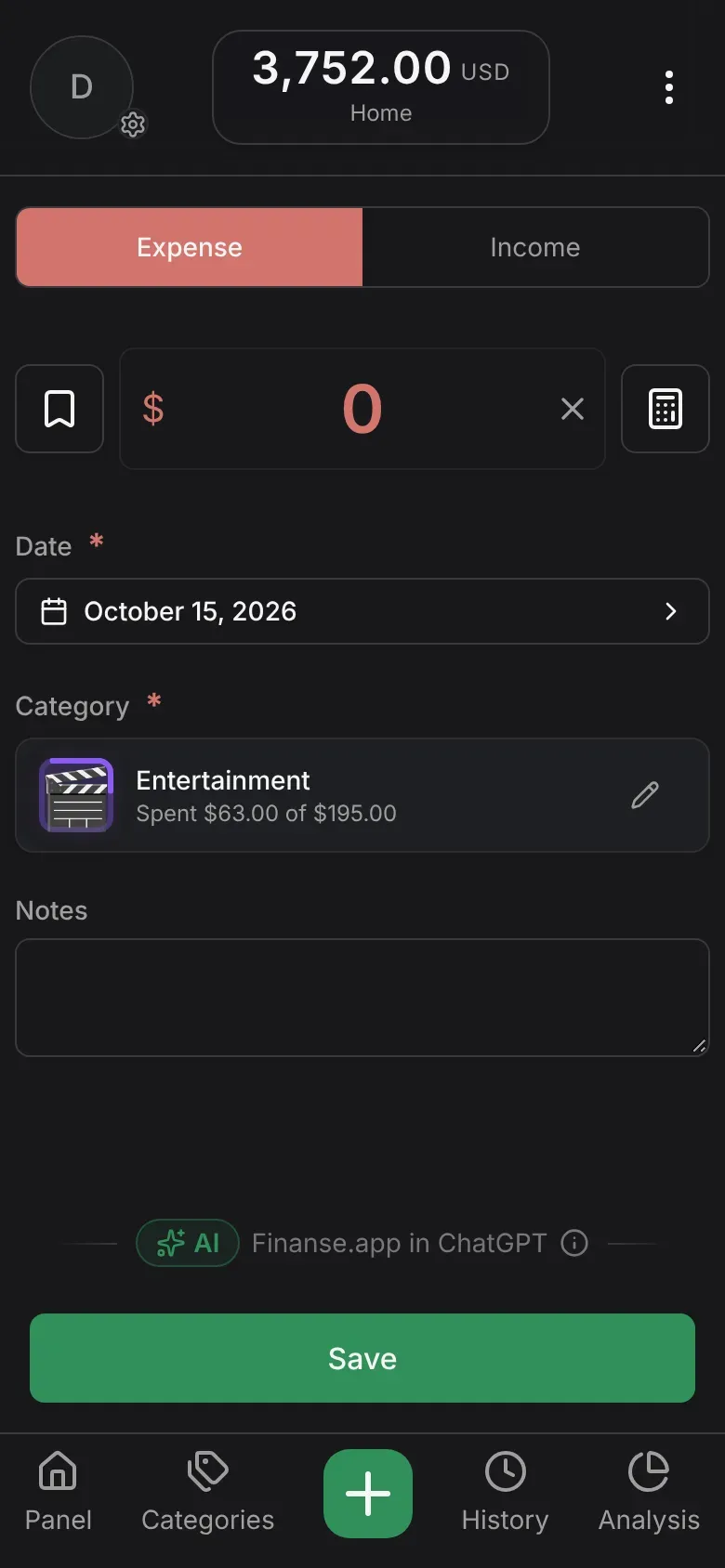
- Enter the Amount, e.g. $64.20 for groceries. Next to the field are two icons: the bookmark opens templates, and the calculator works out the amount from several numbers.
- Check the Date. It defaults to today. For an expense you forgot, pick an earlier day.
- If you paid from an account other than the default one, tap Accounts and choose the right account.
- Choose a Category. The list shows only categories that match the selected type and has a search box.
- In Notes, write what it was, e.g. “weekend groceries”. You can find the note later with the search in history.
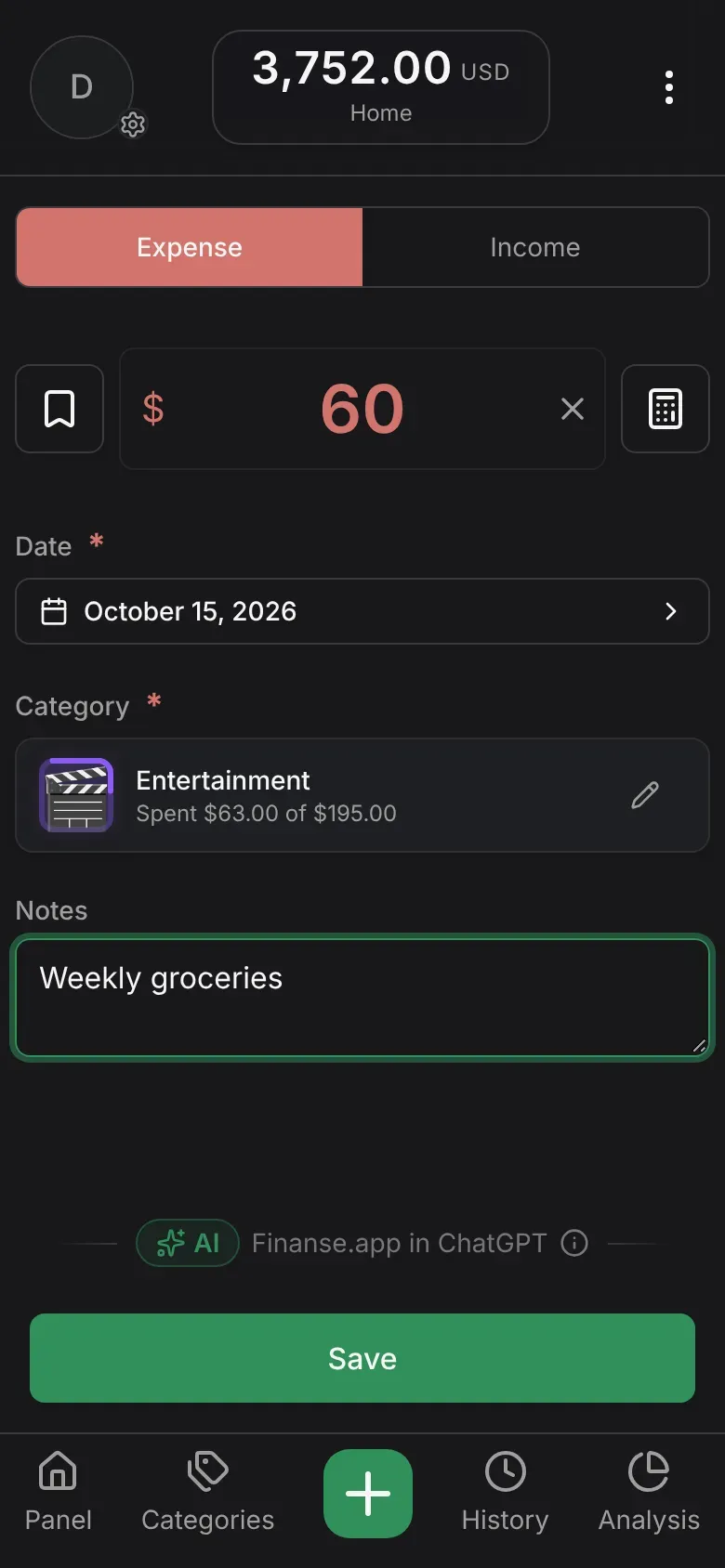
- Tap Save. The form clears so you can add the next entry right away.
Good to know
- A future date schedules the transaction. The button then changes to Schedule, and the entry goes into history only on the selected day.
- The 🐷 Savings and 🛟 Emergency fund accounts are for transfers only. You can’t add an expense or income to them.
- If a category has a budget and the expense would go over it, the app asks whether to continue. You can turn the warning off in that window and back on in Settings.
- Every role can add transactions. Someone with the Child role sees only their own entries in history. A User sees all entries but edits only their own; the Owner and Administrators can edit any of them.
- Without internet, the entry is saved on the device and syncs by itself once you’re back online.
- Below the form is the Finanse.app in ChatGPT section. If you connect the app to ChatGPT, a photo of a receipt is split into your categories.
For the steps to add a receipt from a photo: Receipt photos: add shopping through ChatGPT
Fastest: from a template
Press and hold + on the bottom bar to pick a template straight away. On a computer, the N key opens a new expense and I a new income.
Related
Frequently asked questions
Can I add an expense from last week?
Yes. When adding, pick an earlier day in the Date field. The transaction goes into history with that date.
What happens if I pick a future date?
The button changes to Schedule, and the transaction appears in history only on the selected day.
Will my spouse see my expense?
Yes, if they have the Owner, Administrator or User role. Someone with the Child role sees only their own entries.