
On a computer: shortcuts and the command palette
The Ctrl+K command palette (⌘K on a Mac), the shortcuts list behind the question mark, and keys for adding expenses, months and history.
Available to: Owner, Administrator, User, and Child
On a computer you can do most of your work in Finanse.app without a mouse: add an expense, change the month and jump to any screen from the keyboard. Shortcuts help most when you enter several expenses at once or go through your history.
Shortcuts work only on screens at least 1024 px wide. On a Mac you use ⌘ instead of Ctrl — the app shows the right key by itself.
Step by step
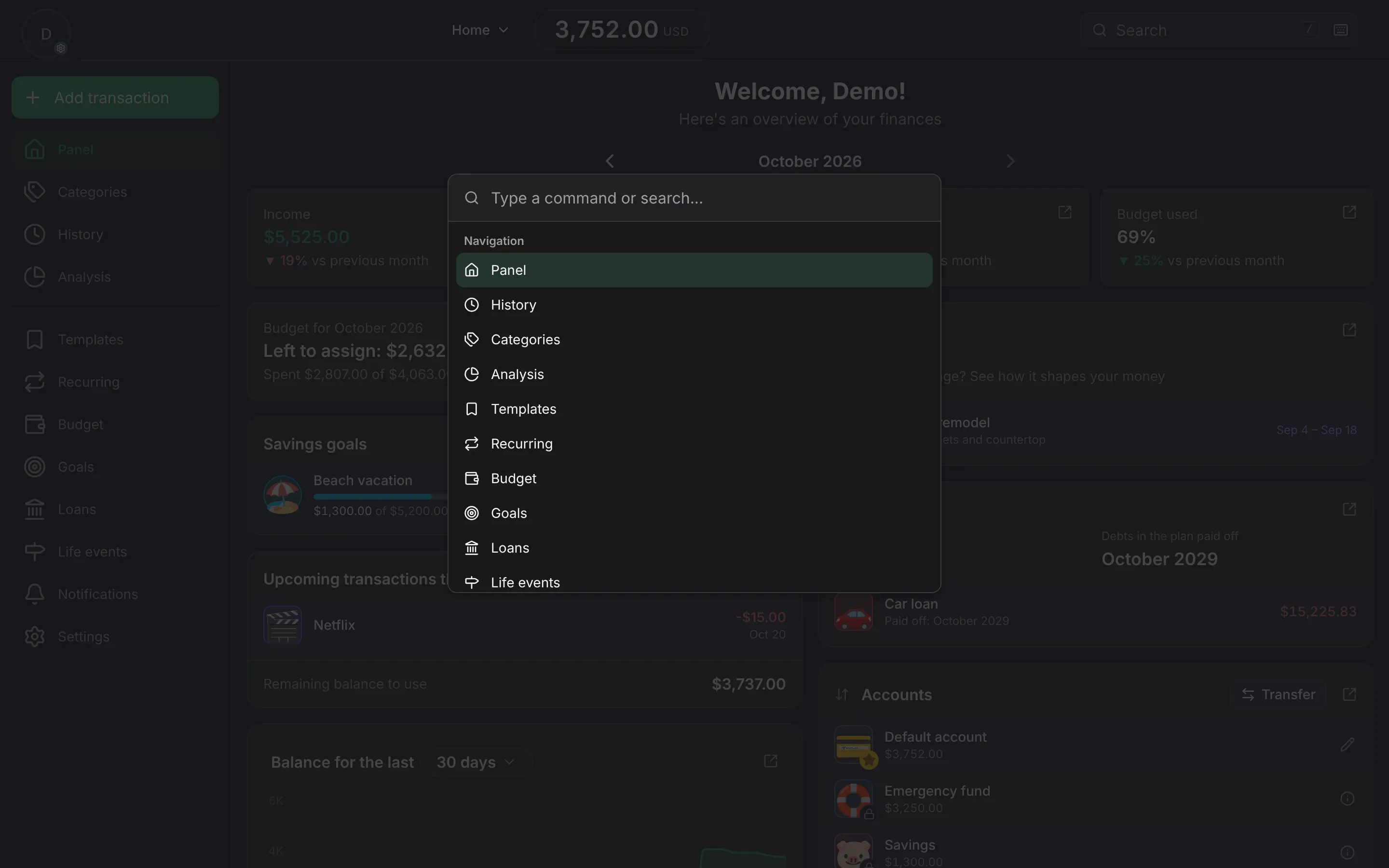
- Press Ctrl+K (⌘K on a Mac). The Command palette opens with the field Type a command or search….
- Type a few letters, e.g. “bud”, pick a result with the arrow keys and press Enter. The palette groups results: Navigation, Analysis views, Settings sections, Actions, Categories, Templates and accounts.
- If you type text that matches no command, the palette offers to look for it in your history: Search history: “…”.
- Press ? (question mark) to open the Keyboard shortcuts window. You can also open it with the keyboard icon in the search box in the top bar, or in Settings → Help & contact → Keyboard shortcuts.
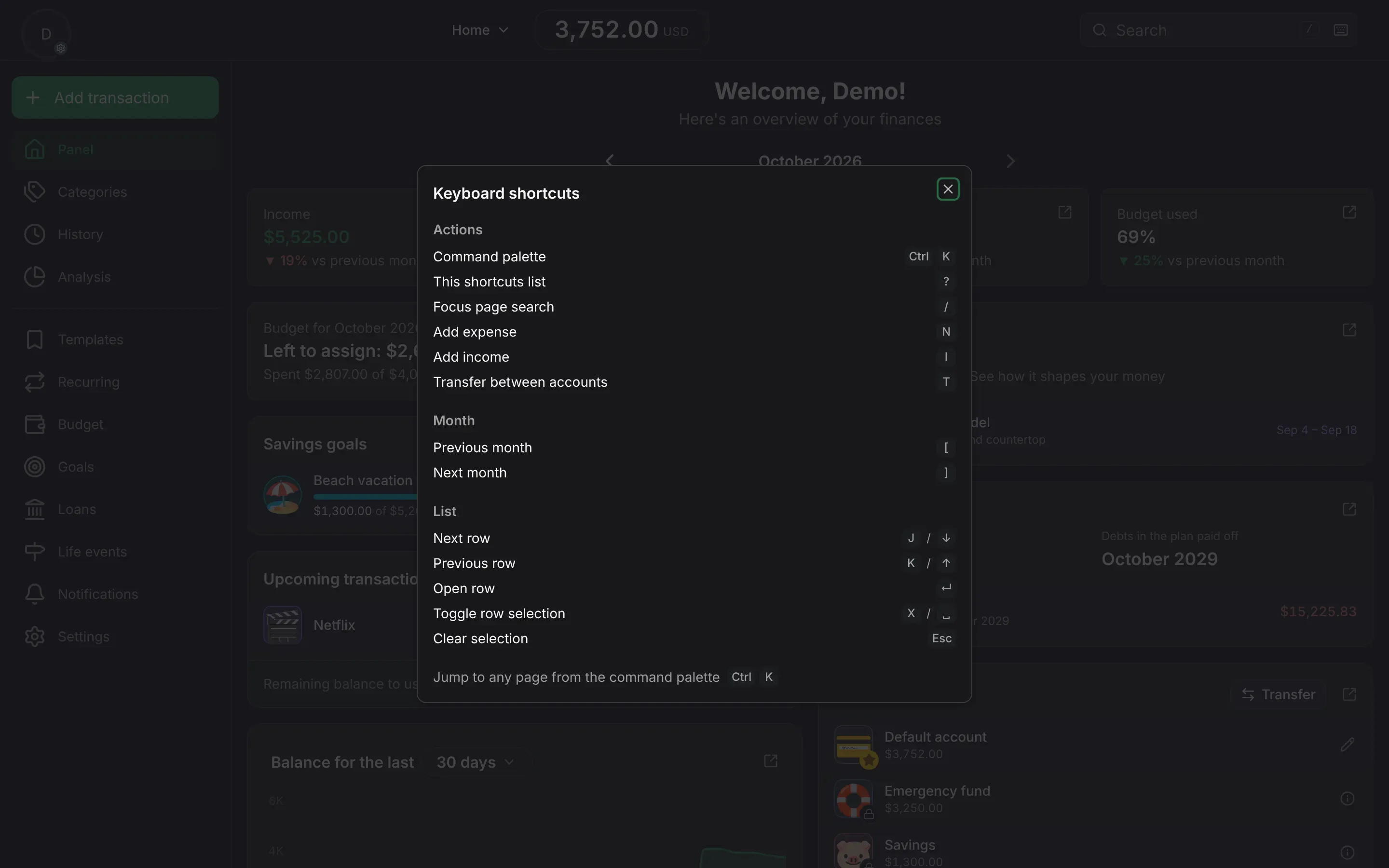
- Press N to add an expense or I to add income. The form opens over the current screen. T opens a transfer between accounts if you have at least two accounts.
- Press / (slash) to jump to the page search. The [ and ] keys switch to the Previous month and Next month wherever you see a month picker: on the Panel, in History and in the analysis views.
- In History, move through rows with J and K or the arrow keys. Enter opens a row, X or Space selects it, and Esc clears the selection.
Good to know
- The letters for adding depend on the app language. In English they are N (new expense), I (income) and T (transfer). The Keyboard shortcuts window always shows the letters for your language.
- Single keys don’t work while you type in a text field. Ctrl+K (⌘K) works from a text field too.
- Global shortcuts are off under an open dialog or drawer, and during the tutorial. On the add screen, the form’s own keys work instead: digits, + and Delete.
- There are no separate shortcuts for moving between pages. Use the command palette for navigation: Ctrl+K (⌘K) and the name of the screen.
- Hover over a button that has a shortcut and a hint with the key appears after a moment, e.g. on Add transaction in the sidebar.
- The Child role doesn’t see the statement import action or the Loans and Life events screens in the palette.
Related
Frequently asked questions
Why don't the shortcuts work on my phone?
Shortcuts and the command palette work only on screens at least 1024 px wide — a computer or a large tablet with a keyboard.
A shortcut does nothing. What am I doing wrong?
Single letters don't work while the cursor is in a text field, or while a dialog or the tutorial is open. Click outside the field or close the dialog and try again.