
Create an account and finish the setup wizard
Google sign-in, a new project or joining with an invitation key, default categories and the tutorial. Your first 3 minutes in Finanse.app, step by step.
You sign up with your Google account, and a short wizard sets up your project, accounts and categories for you. Three minutes later you can add your first expense.
Step by step
- On the finanse.app home page, tap Sign up with Google. On the sign-up screen the button has the same label.
- Choose your Google account. By continuing you accept the Terms of Service and the Privacy Policy — links to both are below the button.
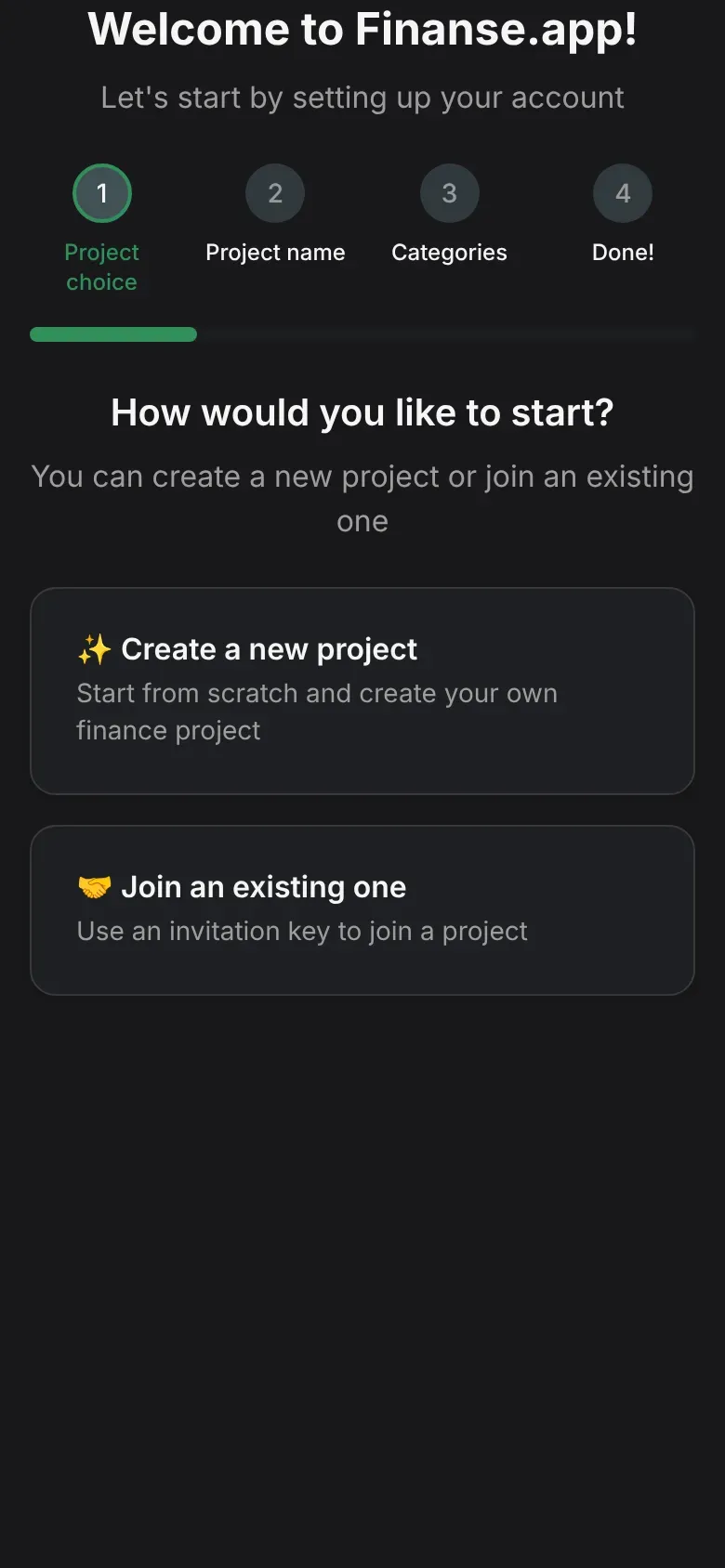
- On the How would you like to start? screen, choose ✨ Create a new project if you are starting a budget from scratch. If someone sent you an invitation, choose 🤝 Join an existing one and go to step 7.
- Enter the Project name, e.g. “Household budget”, and pick the Project currency. Tap Continue.
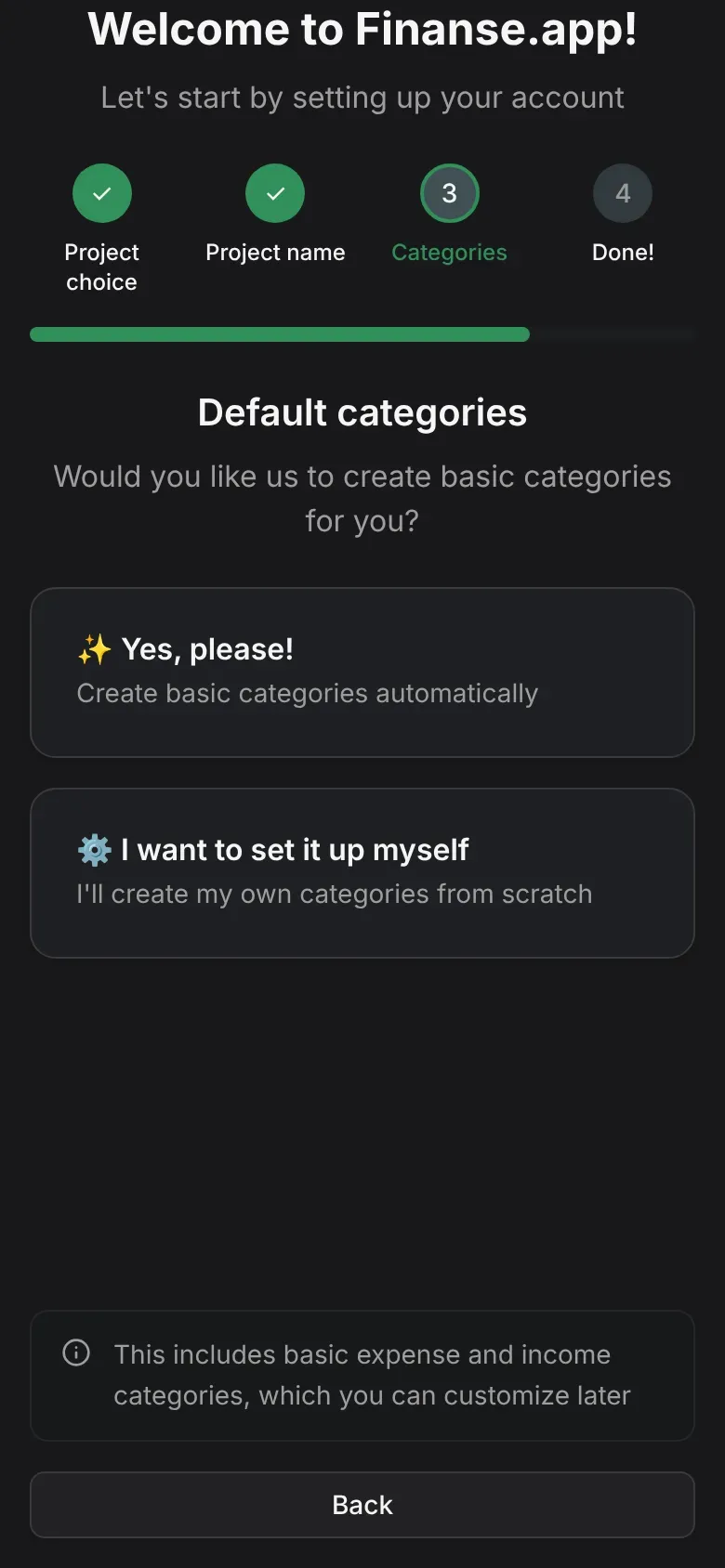
- On the Default categories screen, choose ✨ Yes, please! to get a ready-made set of expense and income categories. ⚙️ I want to set it up myself leaves the list empty.
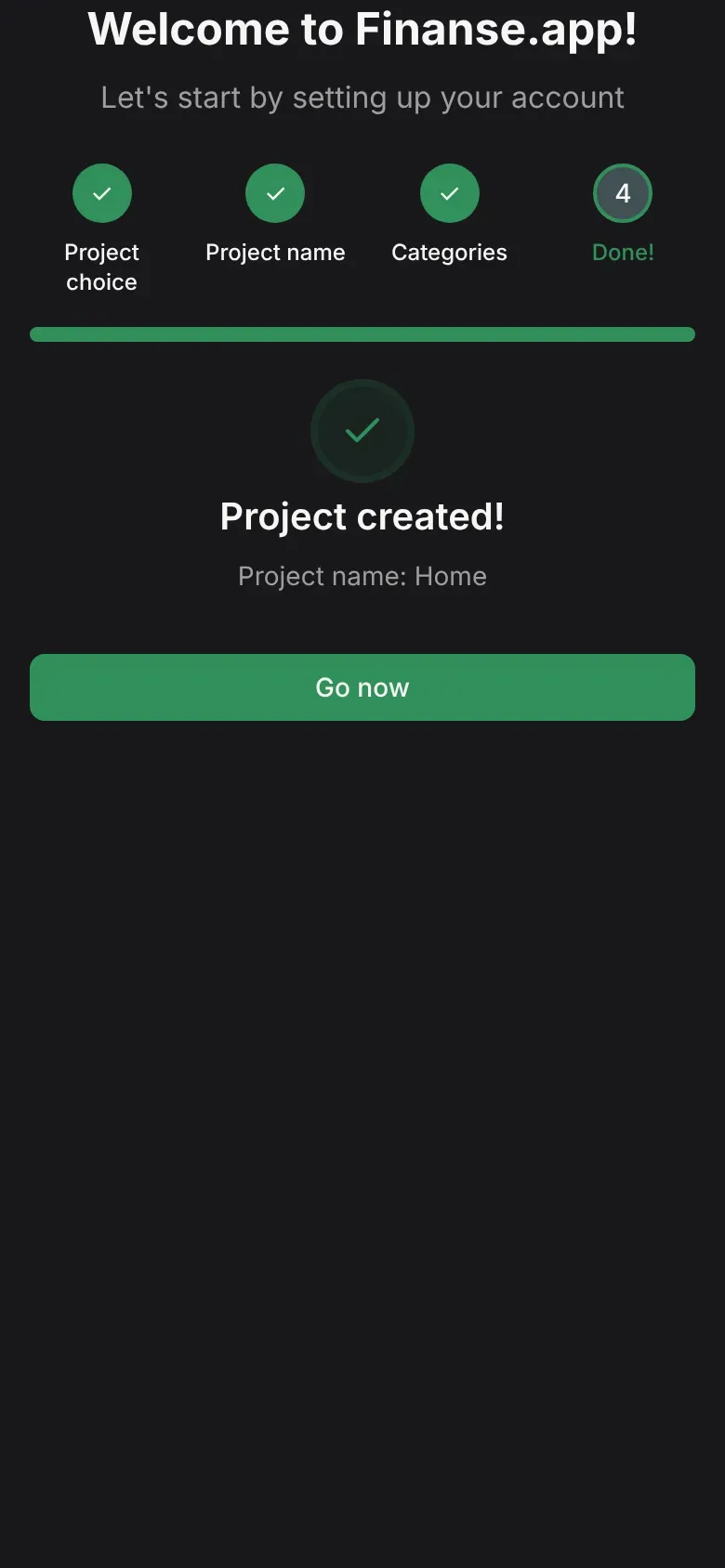
- On the Project created! screen, tap Go now. You land on the dashboard.
- Joining a project? In the Invitation key field, paste the whole invitation link or just the key and tap Join. If you open the invitation link directly, the field fills itself — check the project name and your role, then confirm.
- After you first enter the app, a short tutorial starts. Go through it or close it — you can come back to it any time.
Good to know
- Sign-in works only with Google. The app never asks for a new password or for your bank login.
- In a new project the app creates three accounts by itself: Default account for everyday spending and two protected accounts — 🐷 Savings and 🛟 Emergency fund. Protected accounts can’t be deleted or renamed; money reaches them by transfer.
- The default categories are only a starting point. Change, add or delete them on the Categories screen.
- The final screen may show the option E-mail me about new blog posts. Subscribing is optional. The checkbox reflects your current subscription; it starts unticked if you haven’t subscribed. Tick it only if you want e-mails about new articles.
- The tutorial starts by itself only once. Replay it in Settings → Help & contact → Tutorial. In the same section, App guide opens this guide.
- A new account starts with a free trial. Its length and the price after it are shown in the Pricing section on the finanse.app home page; the Terms of Service describe the paid subscription.
The invitation key
The person inviting you creates the invitation in Project settings, under Members. Each person gets a separate key — one link works only once.
Related
Frequently asked questions
Can I sign up with an e-mail and password?
No. Sign-in works only with a Google account, so you don't need to invent a new password.
My spouse already has a project. Should I create my own?
No. Choose Join an existing one and paste the invitation link or key from your spouse. Then you both run the same budget.
Can I change the project name or currency later?
Yes. You can change both in the project settings.